
Grabbit downloads videos from their web pages: YouTube, Vimeo, Dailymotion, Twitch, TikTok, X, Instagram, Facebook, Reddit, SoundCloud and well over a thousand other sites. It does this with yt-dlp, an open-source program whose community keeps it working as sites change.
Start a video download
- Give the video's page address to Add (Ctrl+N) or the paste bar. Grabbit recognises video pages and opens the video window, already looking the page up.
- Or choose Tasks → Download video from a page..., paste the address into Page address and click Look up.
Any other page address that turns out to be a web page, not a file, is offered to the video window too.
Paste the page's address and click Look up. 

Pick a quality, then Download now. 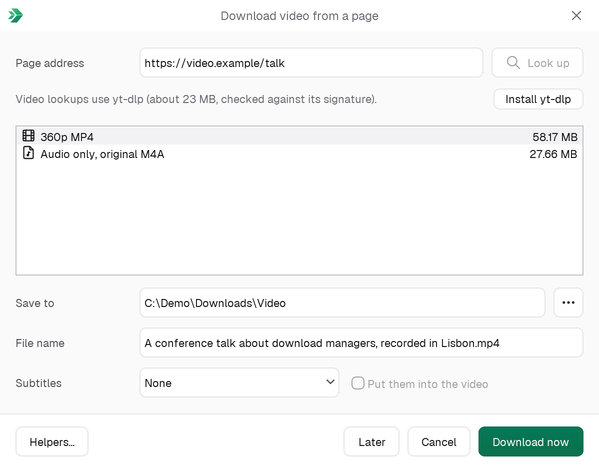
It downloads like any other file, in its own row and window. 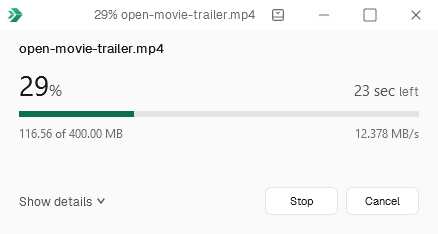
yt-dlp and ffmpeg
Grabbit offers its two helpers on its first start, and again the first time they are needed. It downloads them from their official releases with its own downloader, so a cut connection resumes, and uses your proxy settings:
- yt-dlp (about 23 MB) looks the page up and finds where the video and its sound come from; Grabbit downloads them (How a video comes down). The first time, click Install yt-dlp. Grabbit checks the download against the signature yt-dlp's developers publish before it uses it.
- ffmpeg (about 80 MB) joins a video and its sound when a site keeps them apart, which most sites do for the higher qualities, and turns the sound into an MP3, Opus or FLAC file. Click Install ffmpeg when Grabbit offers it. Grabbit checks it against the checksums its release publishes.
Both are kept in a tools folder in Grabbit's data folder. For YouTube, yt-dlp also needs a JavaScript runtime, which Grabbit can download too: see A JavaScript runtime for YouTube.
Use your own copies
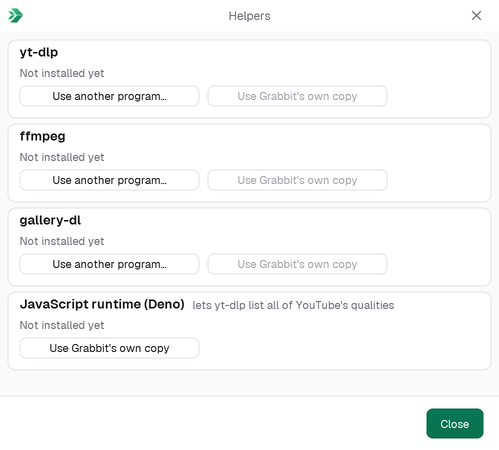
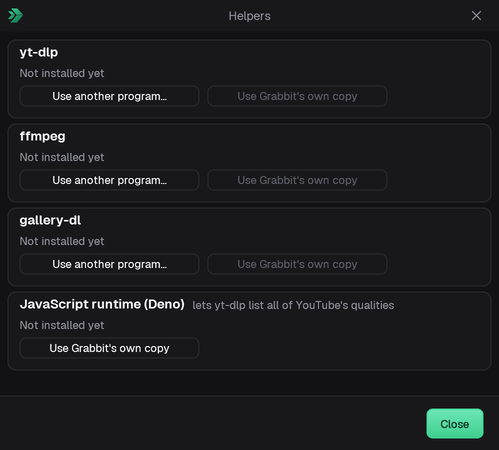
Already have yt-dlp or ffmpeg for another program? Use those instead of a second copy: in Download video from a page, click Helpers..., then Use another program... beside yt-dlp or ffmpeg, and choose the program. Grabbit runs it once to check that it is that program, and uses it from then on, the command line too. Grabbit doesn't update a program you chose: keep it up to date yourself (yt-dlp: yt-dlp -U, or your package manager). Use Grabbit's own copy goes back to the one Grabbit downloads and checks.
A JavaScript runtime for YouTube
YouTube hides most of a video's qualities behind small puzzles that yt-dlp solves with a JavaScript runtime: Deno, Node.js or Bun. Without one, a look-up is slow, the list is short (sometimes only the sound and a low quality) or it fails with Requested format is not available, and Grabbit says so: YouTube needs a JavaScript runtime to list its video qualities. Other sites don't need one.
The quickest way is Grabbit's own copy of Deno: click Install Deno beside that message, or, in Helpers..., Use Grabbit's own copy in the JavaScript runtime (Deno) row. Grabbit downloads Deno's official Windows build for your processor (about 40 MB; x64 and ARM64) from Deno's GitHub releases with its own downloader, checks it against the SHA-256 checksum the release publishes before it uses it, keeps it in the tools folder beside yt-dlp and ffmpeg, and from then on tells yt-dlp to use it. It keeps it up to date the way it keeps yt-dlp's: once a session, in the background, never an older version. The video is looked up again by itself once Deno is in.
Already have Node.js or Deno? Then nothing needs downloading: Helpers says Your system's, nothing to download in that row, and yt-dlp uses it. Grabbit finds Deno, Node.js (also one installed with nvm) and Bun by itself, and Deno or Node.js just installed with winget or Node.js's installer. If you'd rather install one yourself, either works; then look the video up again. If Grabbit still says so, the new program's folder isn't on the PATH Grabbit started with: quit Grabbit (Tasks → Exit) and start it again.
winget install DenoLand.Deno, orwinget install OpenJS.NodeJS.LTS. The installers on deno.com and nodejs.org work too.
If the list stays short, your own yt-dlp may be too old for YouTube: click Use Grabbit's own copy beside yt-dlp in Helpers.... A yt-dlp older than 2025.11.12 can't be told of a runtime at all; Grabbit then leaves the runtime out rather than stop the look-up.
Choose the quality
- Wait for the list. It shows each resolution with its size, best first, then the sound alone:
- Audio only, original: the site's own file, not converted (M4A, or WebM with Opus inside, as the site serves it). The best sound there is, in the smallest file.
- Audio only MP3 at its best variable bitrate (VBR) and at 320, 256, 192 and 128 kbps, for players that only take MP3.
- Audio only OPUS: an
.opusfile. When the site's sound is Opus already (YouTube's usually is), it's only moved into that file, not converted, so nothing is lost. - Audio only FLAC: a lossless.flacfile, for a library or a program that wants FLAC. It can't add quality: the site's sound is already compressed with losses, and FLAC keeps it exactly as it came, in a file several times bigger. The window says so when you choose it. - Pick one. Without ffmpeg, only the qualities that come with their sound are listed, and no MP3, Opus or FLAC (ffmpeg makes them).
- Check Save to (the Video category's folder by default) and File name, which comes from the video's title.
- Choose Subtitles if you want them (see below).
- Click Download now, or Later to add it to the list without starting.
The video then downloads like any other file, with its own row in the list and its progress window.
How a video comes down
yt-dlp looks the page up and picks the quality's video and sound. Grabbit's own downloader then brings each of them in, one after the other, the way it downloads any file:
- Over several connections: as many as Options → Connection gives a file. The progress window counts the whole video as one, its strip one plain fill; Show details shows its speed over the last minute.
- A stream sent in many small pieces (HLS, DASH, as most sites other than YouTube send theirs) comes down that many pieces at once, each kept on disk as it arrives, then joined in order into one file, as yt-dlp joins them. Pieces encrypted with AES-128 are decrypted with the key the stream's playlist names. When their addresses expire, Grabbit asks yt-dlp for the stream's new list and carries on with the pieces still missing.
- Under your speed limits: the Speed Limiter's, the video's own (its progress window's Limit, under Show details), and the limit for all downloads together. A change applies at once.
- Paused and resumed like a file, also after quitting Grabbit: it carries on from the bytes already saved.
- When an address stops working: a video's addresses are signed and expire after a few hours (YouTube's after six). Grabbit asks yt-dlp for a fresh one for the same quality and carries on from where it stopped.
Then yt-dlp does what it does after a download: it joins the video and its sound with ffmpeg into one MP4, saves or embeds the subtitles, and converts the sound for an MP3, Opus or FLAC choice.
YouTube serves each connection's long requests slowly, so Grabbit asks for the video in pieces of 10 MB at most, as yt-dlp does, and several at once.
Some videos yt-dlp still downloads by itself, over its own connection, and the progress window says so:
- a live stream still being recorded (Recording a live stream);
- a stream sent over RTMP, RTSP, MMS or FTP;
- the rare streams in pieces of other kinds (Adobe's HDS, Microsoft's Smooth Streaming), and one whose key the site hands yt-dlp directly.
For those, a new speed limit starts the download again with it, from where it was (Speed limits); a live stream that is recording takes it the next time it starts.
Recording a live stream
A live stream, a broadcast still going on, is recorded by yt-dlp with ffmpeg into an unfinished file, so Grabbit can't know its length. While it records, the progress window says Recording..., and the amount and the speed under its strip follow the size of what has been recorded so far.
- Recording... shows from the moment the recorder opens its file, once it has connected to the stream (a few seconds after the download starts; until then the window says Connecting...; a stream that can't be reached never gets there). The amount shows what has reached the disk, and the recorder writes it in blocks of 256 KB, so it stays at 0 KB until the first block is written (that can take a while on a stream of low bitrate), then grows block by block. Stop and save before the first block keeps nothing yet: the download is left stopped, with its empty file, for Resume to record anew. An empty unfinished file an earlier run left is removed when the recording starts again (it holds nothing), so a resumed recording shows Recording... from the same moment.
- Stop and save is what the progress window's pause button reads for a live stream that is recording. It, Stop and Stop all in the list (toolbar and menus), a queue's stop (by hand or at its scheduled stop time) and the phone page's pause all end the recording and keep it. Grabbit makes the recording an MP4 itself, as yt-dlp does when a live stream ends: the streams are copied as they are, nothing is converted. The window says Saving... meanwhile, and the download is then Complete, as when a live stream ends by itself: the queue goes on and the completion notice and actions run.
- The last moments may be missing: at most the last 1 MiB the recorder hadn't written yet. That is a few seconds of video, and up to about a minute for a stream with sound only.
- If the MP4 can't be made, the recording is kept as an MPEG-TS file (
.ts), which most players open. If that can't be done either, the download says so and the unfinished file stays as it is. - The recording is removed only when the MP4 holds all of it: as long as the recording to within a second, its picture and its sound each too (ffprobe's durations; without them, at least 90 % of the recording's size). A shorter MP4 is kept with the recording beside it, as
My stream (recording 1).ts, and the download's log says why (if the recording can't be renamed, the log says so: it stays as the unfinished file). - A recording in several parts (a picture and a sound part yt-dlp left apart) is made one MP4 with all of them. If they can't be joined, the download says so and every part stays as it is.
- Cancel in the progress window only stops the download: the recording stays in its unfinished file. So does reaching a download limit, which counts a recording as it grows and stops it as it stops other downloads. Resume, or Grabbit starting the download again by itself (after a network adapter change or the download limit, or a queue that starts when Grabbit opens), records the stream anew. It first sets the earlier recording aside, next to it, as
My stream (recording 1).ts(then(recording 2), and so on), so nothing is recorded over; so it does when the stream has ended meanwhile and the download goes on as a normal video. (An unfinished MPEG-TS file yt-dlp downloads directly, without its resume state, is taken for a recording the same way: it starts over, what it had kept aside.) If that file can't be set aside, Grabbit doesn't record over it and says so. - These kept recordings aren't the download's own files: Delete with its files leaves them.
- Closing Grabbit while a live stream records, or while it saves one, stops it without saving: the recording stays in its unfinished file (a half-made MP4 is left as
<name>.temp.mp4, which Delete with its files removes), and it is set aside when the download starts again. The command line (grabbit-cli) doesn't save a live stream this way. - A live stream saved by a queue's stop counts as complete, so a daily queue doesn't start it again the next day.
Subtitles
When the video has subtitles, the Subtitles list offers them: the uploader's own languages first (and All the uploader's when there are several), then the site's automatic captions, marked automatic. Of those, only the ones in the language spoken and their translations into English and your interface language are listed; sites like YouTube offer a machine translation into every language they know.


- Saved beside the video, they get its name and the language:
My video.fr.srt. Players such as VLC and MPV pick them up on their own. With ffmpeg they're always SRT; without it, the site's own format (often WebVTT,.vtt). - Put them into the video puts them inside the file instead, as tracks you switch on in the player. It needs ffmpeg, and an MP4 or MKV video.
- A sound-only choice (Audio only, MP3, Opus, FLAC) has no subtitles.
Grabbit offers the same choice again for the next video when it has that language.
A site may refuse subtitles when it's asked too often: YouTube does, most of all for its translated captions. The video is saved all the same. Grabbit asks for the subtitles once more after 20 seconds, and if they still don't come, the Done window (under Saved to) and the download's log say which ones are missing and why. Try them again later. When subtitles meant to go inside the video only come on that second try, they're saved beside it instead.
Playlists and channels
Paste the address of a playlist (youtube.com/playlist?list=…) or a channel's videos (youtube.com/@name/videos) and click Look up. Instead of one video's qualities, the window lists the list's videos, each with its length.
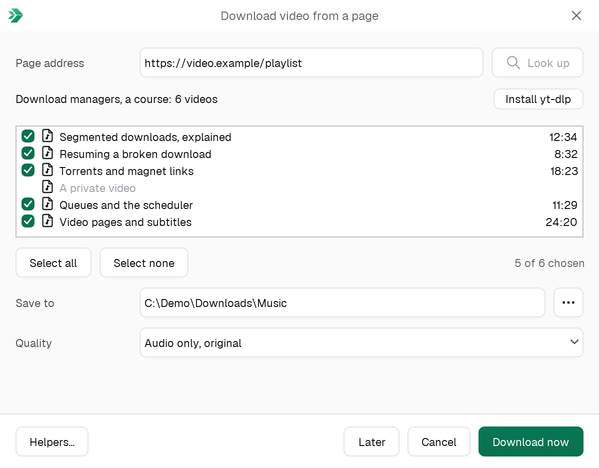
- A playlist is listed whole, as its videos come in: the line above the list says how far it is ("Listing the videos: 1,200 of 6,000"). Stop listing keeps the ones listed so far, and List the rest carries on from there. If the site stops answering part-way (YouTube may, when it's asked too often), the window says after how many videos and why, and List the rest tries again from there.
- A channel is listed 50 videos at a time, newest first. Load more lists the next 50.
- Every video starts ticked. Untick the ones you don't want, or use Select all and Select none. Private and deleted videos are greyed out and can't be ticked.
- Quality applies to every video: Best quality, Up to a height (each video at that height, or the nearest below it), Audio only, original, Audio only MP3, Audio only OPUS or Audio only FLAC. Without ffmpeg, only the qualities that come with their sound are offered, and no MP3, Opus or FLAC.
- The videos go into a folder named after the list, inside Save to, each under its own title.
Download now adds each video as its own download and starts the main queue, which runs as many at once as you set in the Scheduler (Download N files at the same time). Later adds them without starting. Adding more than 500 at once asks first.
Grabbit lists at most 20,000 videos of one list.
A page address that points at one video inside a playlist or a mix (for example watch?v=…&list=…) downloads that one video, never the whole list.
Speed limits
Videos keep to the Speed Limiter: the limit for one file, a video's own limit (the Limit row of its progress window's details), and the limit for all downloads together, which they share with every other download. Grabbit's own downloader brings them in, so a change applies at once, as for a file.
A video yt-dlp downloads by itself (How a video comes down) takes a limit only as it starts: when you turn the limiter on or off, change its settings or the video's own limit, Grabbit stops it and starts it again with the new limit, and it goes on from where it was (the log says "Stopped: the speed limit changed; starting again with it"). A live stream that is recording is the exception: restarting it would cut the recording, so it keeps recording and takes the limit the next time it starts. Under the limit for all downloads, such videos share it evenly: when another starts, the ones running with more than their share start again with it; when one ends, the others keep theirs. A gallery's pictures that Grabbit brings in follow a change at once; what gallery-dl still fetches itself starts again with the new limit, skipping the files already saved. Other changes (torrents taking more or less of the limit for all downloads, Only while I'm using the computer) apply to the next one that starts.
Through a VPN's adapter
With Options → Proxy / SOCKS → Network adapter set, video downloads go through that adapter too, with the same kill switch as other downloads: Grabbit hands yt-dlp (and the ffmpeg it starts) a proxy of its own on this computer, and opens every connection through the adapter, looking the names up with the DNS you chose in Options → Connection (without an adapter, yt-dlp uses the system's DNS). When the adapter disconnects, the video download stops, and it starts again when the adapter is back. Formats sent over RTMP, RTSP, MMS or FTP can't go through it and are refused.
Sites that want you signed in
Some videos play only for a signed-in viewer: a member's or a private video, an age-restricted one, and YouTube sometimes asks any viewer from an address it doubts to "Sign in to confirm you're not a bot". yt-dlp then needs your browser's cookies, the small files that keep you signed in.
- The Download video button over the video passes that page's cookies, from the window and profile you're in (a private window, a Firefox container), for the look-up and the download. Nothing to set up. Each cookie goes with the domain the browser keeps it for, so a sign-in on YouTube Music (music.youtube.com) or YouTube's mobile site reaches www.youtube.com too.
- A pasted address (Add, Download video from a page, a playlist): choose your browser in Options → Site logins → Cookies for video sites. yt-dlp then reads that browser's cookies on this computer for every video it looks up or downloads. When the extension passed the page's own cookies, those are used instead: they are that page's and that session's.
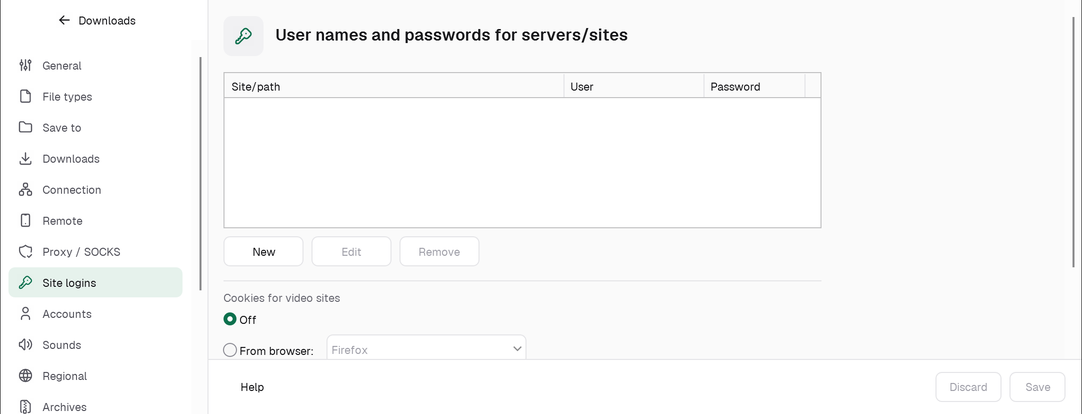
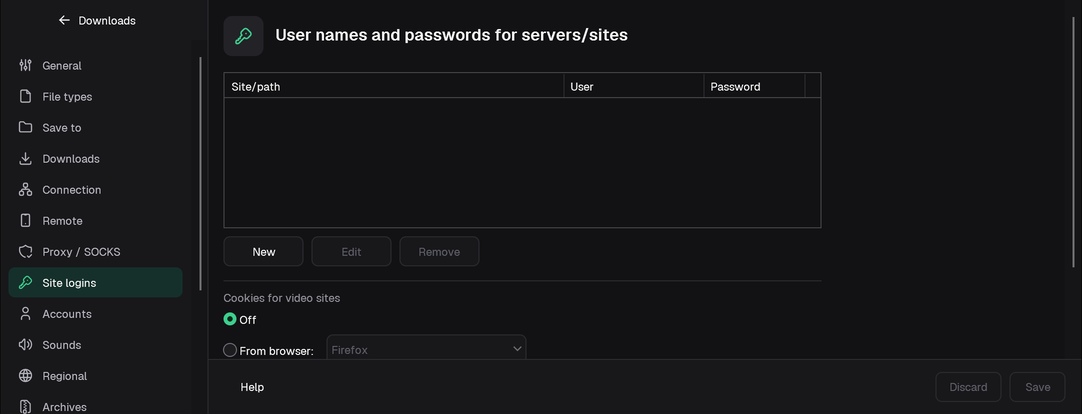
Sign in to the site in that browser first. Grabbit never logs or shows the cookies; the download's log names only the browser they came from.
Which browsers
From browser lists the browsers yt-dlp reads: Firefox, Chrome, Edge, Brave, Opera, Vivaldi,
Chromium and Whale. Profile is optional: a profile's name (Profile 1)
or its folder; empty, the profile used last.
- Firefox works. If you signed in only moments ago with Firefox open, close it once so it writes the sign-in to its files.
- Chrome, Edge and Brave lock their cookies to themselves (Chrome 127 and later, "app-bound encryption"), and yt-dlp can't read them while the browser is open either. The window says so; choose Firefox, or use the button over the video, which works with any browser.
- Another browser built on Chromium (Helium, Thorium, ungoogled-chromium...): choose
Chromium and that browser's profile folder (its
Defaultfolder, orProfile 1...; under%LOCALAPPDATA%). yt-dlp reads the folder, but a browser that locks its cookies as Chrome does can't be read this way: use its extension's button.
When a video server can't be reached
Some sites, YouTube among them, send each viewer to a nearby video server, sometimes one inside the internet provider's own network. If that server can't be reached from your connection, a browser quietly switches to another one, but yt-dlp on its own would give up. Before each video download Grabbit checks the servers in the video's links and, if one doesn't answer, switches to the next one the site lists. The download's log says when this happens.
If a video won't download
- Hover over the download's Status, or open its progress window, to read yt-dlp's message.
- No video this can download on that page means yt-dlp found nothing on the page. Check that the address is the video's own page.
- This video needs you to be signed in, or the site wants you signed in: see Sites that want you signed in.
- Sites change often, and a newer yt-dlp usually fixes it. Grabbit keeps its own yt-dlp up to date: once a session, when the video window opens, it fetches the newest release in the background (checked against yt-dlp's signature, never older; the one before is kept). So quit Grabbit (Tasks → Exit), start it again, open the video window, wait a moment, and try again. A yt-dlp you chose with Use another program... is yours to update (
yt-dlp -U). - Videos protected with DRM (most paid streaming services) can't be downloaded, and Grabbit doesn't try. The browser extension's Media on this page shows such a stream as Protected and doesn't send it.
- A page whose video the window can't find: play the video in your browser, then use the extension's Media on this page to send the stream the page loaded.
- Downloading may be against some sites' terms. Checking that is up to you.
- Still stuck? Use Help → Report a problem and include the page address.
Next steps
Free, open source, no ads, no trial.
Download Grabbit