
Queue big files during the day and let Grabbit download them at night, when nobody needs the connection. It can turn the computer off when it is done.
1. Put the downloads in a queue
For new downloads:
- Add the download as usual (Add, or from the browser).
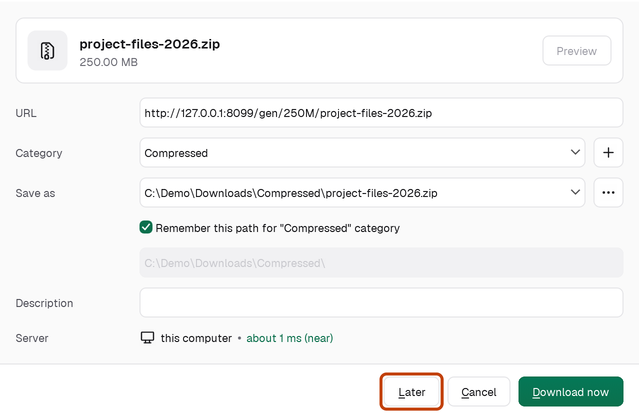
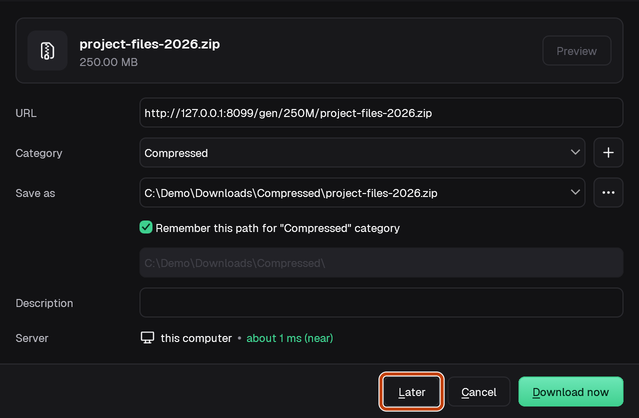
- In Download file info, click Later.
- Under Add to queue, pick Main download queue. Leave Start the queue now unticked. Click OK.
For downloads already in the list:
- Select them (Ctrl+click for several).
- Right-click and choose Add to queue → Main download queue.
The Q column now shows a queue icon for each of them.
2. Set the start time
- Click Scheduler on the toolbar (or Downloads → Scheduler). It opens in the main window, in place of the download list.
- Select Main download queue on the left. The Schedule tab opens.
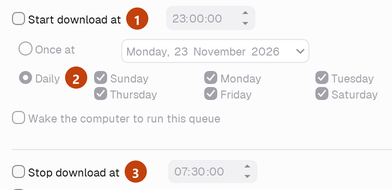
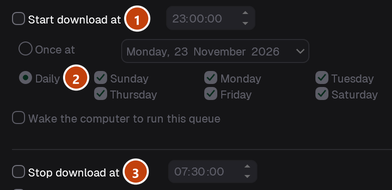
- Tick Start download at and set the time, for example 1:00:00 AM. Click the hours and use the arrows or type the number.
- Choose Daily and tick the days, or Once at and pick a date.
- To stop in the morning whatever is left, tick Stop download at and set a time, for example 7:00:00 AM.
3. Choose how many run at once
- Open the Files in the queue tab.
- Set Download [N] files at the same time. Four is the default. Use 1 to download them one by one.
- The list shows the order they will run in. Use the arrow buttons under it to move a download up or down.
4. Decide what happens at the end (optional)
Back on the Schedule tab:
- Tick Turn off computer when done and choose Shut down, Sleep or Hibernate. Grabbit shows a 30-second countdown first, so you can still cancel if you're at the computer.
- Or tick Exit Grabbit when done.


5. Save and leave Grabbit running
- Click Save at the bottom, then ← Downloads to see the download list again.
- Leave Grabbit running. Closing the main window is fine: Grabbit keeps going in the tray. Don't use Tasks → Exit.
- Make sure the computer doesn't go to sleep before the start time.
At the start time the queue starts on its own. In the morning, the finished files are under Finished in the categories.
Next steps
Free, open source, no ads, no trial.
Download Grabbit