
The portable copy runs straight from a USB stick and keeps its list and settings there. With a few settings, it saves your downloads to the stick too.
1. Put Grabbit on the stick
- Download
Grabbit-<version>-portable.zipfrom Releases. - Unzip it onto the stick, for example to
E:\Grabbit. - Check that there is a
datafolder next tograbbit.exe. That folder is what makes Grabbit portable. Don't delete it. - Run
grabbit.exe.
2. Save downloads to the stick
By default, downloads go to the Downloads folder of the computer you're using. To keep them on the stick:
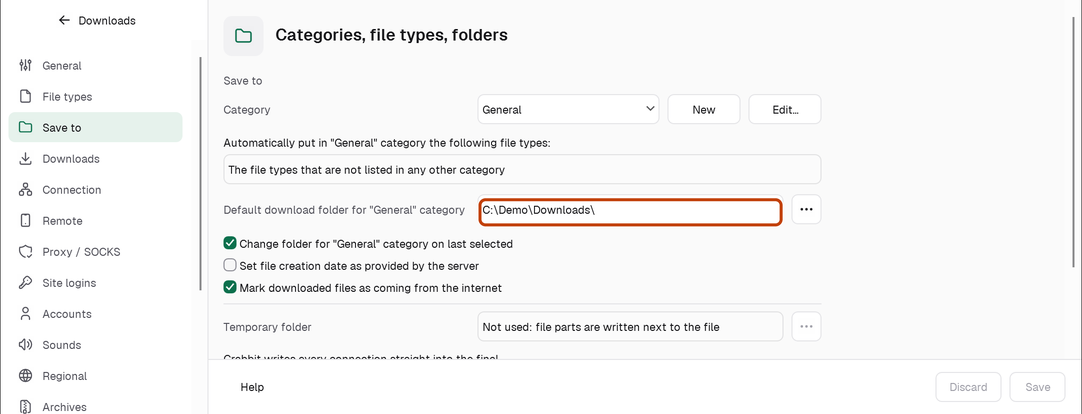
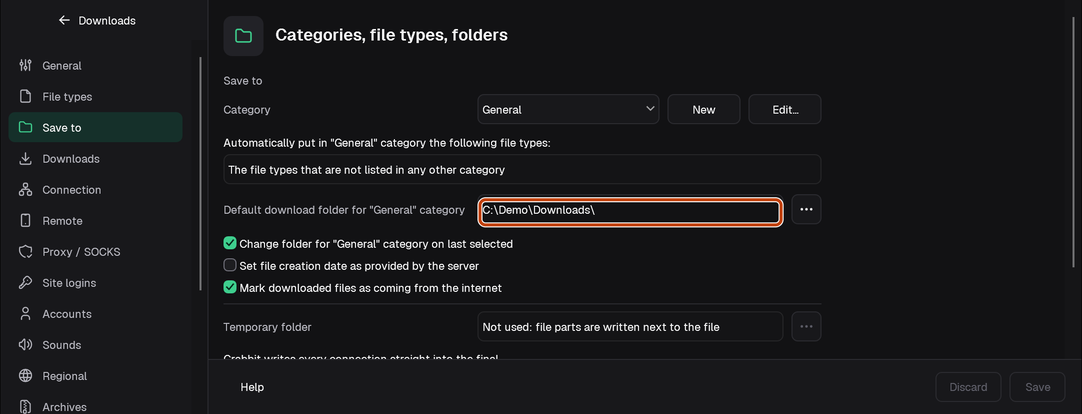
- Open Downloads → Options and its Save to page.
- Under Category, choose General.
- In Default download folder for "General" category, click the browse button (…) and choose a folder on the stick, for example
E:\Downloads. - Choose the next category (Compressed, Documents, Music, Programs, Video, Torrents) and do the same, for example
E:\Downloads\Video. - Click Save.
3. Use it
- Add downloads with Add, the clipboard (Options → General → Offer to download links copied to the clipboard) or the drop target (Tasks → Show drop target).
- The browser extension can't send downloads to a portable copy, because that needs the installer.
- Before you unplug the stick, quit Grabbit with Tasks → Exit so it saves everything. Closing the window only hides it in the tray.
On another computer
Windows may give the stick another drive letter, such as F: instead of E:. The folders you set, and the downloads already in the list, still point at the old letter. Check Options → Save to and change the folders if needed. When Grabbit is about to save into a folder that doesn't exist, it asks whether to create it.
Next steps
Free, open source, no ads, no trial.
Download Grabbit