
A download manager can fill your whole connection. These steps cap Grabbit so that browsing, video calls and games stay smooth.
Cap Grabbit as a whole (recommended)
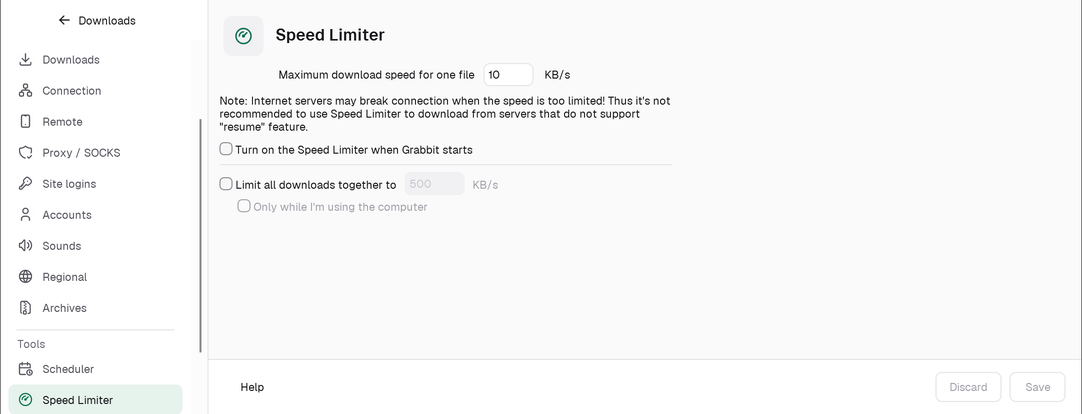
- Choose Downloads → Speed Limiter → Settings.
- Tick Limit all downloads together to and type a speed in KB/s. A good start is about two thirds of your connection's speed. (1 MB/s is about 1000 KB/s.)
- Tick Only while I'm using the computer if you want full speed when you're away. Grabbit goes back to full speed after a minute without mouse or keyboard input.
- Click Save. The settings open in the main window, in place of the download list; ← Downloads goes back to it.
This cap is shared by every download, however many run at once. It works on its own; you don't need to turn the Speed Limiter on.
To remove it, open the same settings and untick Limit all downloads together to.
Cap each file instead
- In the same settings, set Maximum download speed for one file. It starts at 10 KB/s, which is very slow, so set it first.
- Click Save.
- Choose Downloads → Speed Limiter → Turn on.
Each download is then held to that speed. Downloads → Speed Limiter → Turn off gives full speed again. Tick Turn on the Speed Limiter when Grabbit starts to have it on every time.
Slow down one download only
- Double-click the download to open its progress window.
- Click Show details.
- In the Limit row, tick Limit to and type the speed in KB/s.
The other downloads keep their speed.
Some servers drop the connection when the speed is very low. Don't set a tight limit for a server that can't resume (Can resume: No in the progress window's details).
Next steps
- Speed Limiter and connections in detail →
- Download overnight →
- Download limits for capped internet plans →
Free, open source, no ads, no trial.
Download Grabbit