
First, look at what happened
Every download keeps a log of its recent events: retries, redirects, the server's answers and errors.
- Hover over the download's Status in the list to see them.
- Or open its progress window (double-click an unfinished download). The connection table shows what each connection is doing, and Retrying with the reason when one fails.
- File properties (Alt+Enter) shows Last try and its Result.
A download says Error
- Read the reason (hover over Status).
- Select the download and click Resume. Many errors are a server or connection having a bad moment.
- If the link has expired (common for links from sites you sign in to, or links with a time limit in them), get a new one: right-click → Refresh download address.... See Resume a broken download.
- If it says the file changed on the server, the file isn't the one Grabbit started with. Right-click → Redownload to start again from the beginning.
- If it says Google Drive won't give this file now, Drive's download limit for that file was reached. See Google Drive links.
- If it says the site sent a web page instead of the file, the link led to the site's own page: a file host's countdown, a captcha, a Download button to press, or a sign-in. Grabbit never saves that page as your file. Click Open in browser in the download's progress window (or open the link yourself), finish there, and when the browser starts the real download, Grabbit's extension hands it to Grabbit. Without the extension, let the browser download it.
- If it says this site lets only browsers through, the site's bot check (Cloudflare's, for one) turned Grabbit away. Grabbit has already asked once more connecting the way your browser does, with your browser's cookies for that site, and once under its own name (some checks let a program that says what it is through), and the site still wants its check answered in a browser. Hold Alt as you click the link: the browser opens it in the tab, runs the site's check there ("Just a moment...", sometimes a box to tick), and keeps the download that comes after it. Grabbit leaves that download alone for a minute after your click. See Browser integration.
A download starts over instead of resuming
- Look at Can resume in the progress window (click Show details). No means the server can't send a file in parts, so Grabbit can't continue it later.
- Some servers report a new date for the same file every time. Tick Options → Downloads → Ignore file modification time changes when resuming a download.
Downloads are slow
- Check that the Speed Limiter is off: Downloads → Speed Limiter → Turn off. Also look at Downloads → Speed Limiter → Settings → Limit all downloads together to, which applies even with the limiter off.
- Check the download's own Limit in its progress window (Show details).
- Check Options → Connection. A low Default maximum connections, or an exception for the server, means fewer connections. Rows marked (auto) are servers that refused more connections; Grabbit can't do more there.
- Check Download limits in the Scheduler. When the limit is reached, downloads wait with Waiting: the download limit is reached (Scheduler).
The browser doesn't send downloads to Grabbit
- Was Grabbit installed with the setup, with Set up browser integration ticked? A portable copy can't take browser downloads. Run the setup again to add it.
- Is the extension loaded and turned on? Look for Grabbit on the browser's extensions page. In Firefox, a temporary add-on is gone after a restart: load it again (see Firefox forgets the extension). See Browser integration.
- Is Options → General → Use advanced browser integration on, and your browser ticked under Capture downloads from the following browsers?
- Is the file's type in Options → File types? Only listed types are taken automatically. Download with Grabbit on the right-click menu takes any link.
- Is the site in Don't start downloading automatically from the following sites?
When none of this helps, the browser keeps the download, so nothing is lost. The extension's toolbar button says why it couldn't reach Grabbit; see The browser and Grabbit aren't connected.
The Scheduler didn't start the queue
- Grabbit must be running at that time. Closing the window is fine (it stays in the tray); Tasks → Exit is not.
- Did you click Save after setting the time?
- Daily starts only on the ticked days. Once at starts only on that date.
- A computer that is asleep doesn't run anything until it wakes, unless the queue has Wake the computer to run this queue ticked (on Windows it needs Allow wake timers in the power plan; the Scheduler says when it's off). See Wake the computer to run a queue.
A video won't download
See If a video won't download.
A magnet link takes a long time
A magnet link has to get the torrent's file list from other peers first. That can take a minute or two, and longer for torrents with few peers. If nobody answers in about three minutes, Grabbit gives up; try again later, or use the .torrent file if the site offers one.
Grabbit uses a lot of memory
Task Manager shows several figures, and they mean different things:
- Memory (on the Processes tab) is what Grabbit holds for itself alone, its private working set. With the window open and nothing downloading, that is about 70 MB.
- Working set (Details tab, add the column) adds memory shared with other programs. Grabbit draws its windows with the graphics card, so the graphics driver's memory counts here too, about 120 MB in all.
- Commit size is memory Grabbit has reserved, whether in use or not.
Closed to the notification area, Grabbit gives its memory back to Windows: Memory drops to under 10 MB within seconds and stays low while it waits. Downloads, queues and the scheduler go on as before.
The text is too small or blurry
Grabbit keeps Internet Download Manager's compact sizes. On a large or high-resolution screen, choose View → Interface size (125 %, 150 %, 175 % or 200 %), or press Ctrl + and Ctrl − in any Grabbit window, as in a browser; Ctrl 0 goes back to 100 %. Every window follows at once, and Grabbit starts at that size next time. It comes on top of Windows' own display scale (Settings → System → Display → Scale).
A window larger than the screen at that size (Options at 200 % on a 1366 × 768 screen) opens as large as the screen allows, and the rest scrolls: with the scroll bars, the mouse wheel, or Tab to the next control.
Grabbit tells Windows it draws for each monitor's own scale, so Windows never stretches its windows into blur, and it draws Windows' fonts grid-fitted to whole pixels. If the text still looks blurred, tell us your screen's resolution and Windows' display scale when you report it.
The window freezes or draws wrongly
Grabbit draws its windows with Direct3D 12. A graphics driver can still misbehave: a window that holds still for seconds, flickers, or shows wrong colours or blocks. Try the other one: choose View → Draw with → OpenGL (or Direct3D), then quit Grabbit (Tasks → Exit) and start it again. Choosing the first one goes back the same way.
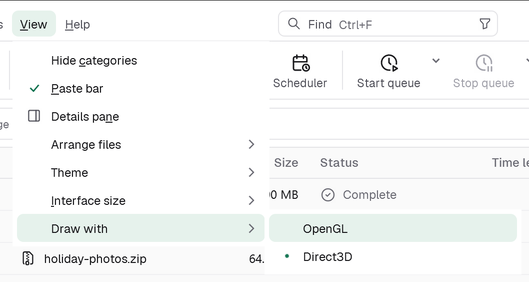
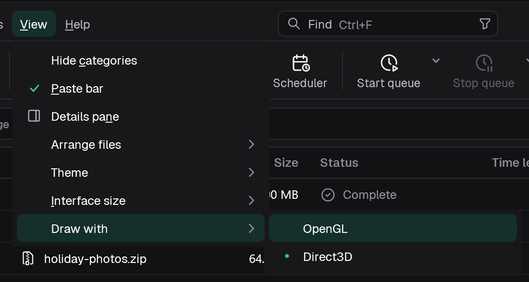
- If Direct3D can't start on your computer (no driver for it, some virtual machines), or its first window doesn't show within 10 seconds of its own (the time Grabbit spends loading your list and its icons doesn't count, however slow the computer is just after it starts), Grabbit draws with OpenGL, and View → Draw with says so, why, since when and when Grabbit tries it again: after a graphics driver update, after a while (a week for a window that was slow to show, a month for one that couldn't start; twice as long each time it fails again), or at the next start when the slow window came just after you signed in to Windows. Choosing it again tries it again at the next start.
- If neither can start, Grabbit draws with a software renderer (Microsoft's), so the window still opens (Remote Desktop, a virtual machine without a graphics driver). It works, but keeps the processor busier while a window changes.
- When OpenGL fails on a card without Direct3D 12, Grabbit draws with Direct3D on Microsoft's software renderer (WARP) from the next start, and View → Draw with says why: OpenGL couldn't start, it is too old to draw Grabbit (older than 3.0, such as Intel's first HD Graphics, whose OpenGL 2.1 drew Grabbit's windows as garbage), its first window didn't show within 10 seconds, or Grabbit froze inside the graphics driver while OpenGL showed a frame (the older Intel HD Graphics and AMD Radeon cards' drivers did). Grabbit tries OpenGL again after a driver update or a while (never by time for one too old), and choosing OpenGL there tries it again at the next start.
- If the graphics card is reset while Grabbit runs (a driver update), Grabbit starts again by itself. Lost twice in 10 minutes, it goes back to OpenGL, and View → Draw with says why.
- Updating the graphics driver from the card maker's site (Intel, AMD or NVIDIA) fixes many of these problems.
- A freeze whose report shows the window thread inside the graphics driver as it shows a frame (
ig4icd64.dllorig9icd64.dllfor Intel,nvoglv64.dllfor NVIDIA,atio6axx.dllfor AMD, underopengl32.dll) is the driver's OpenGL stuck, not Grabbit: choose View → Draw with → Direct3D (the default) and restart Grabbit, and update the graphics driver. If Draw with says Direct3D didn't start there, the line under it says why; Grabbit then remembers the freeze and draws with WARP from the next start. - A freeze or crash report says which one was drawing, on which graphics card and driver, and why that one (chosen, the default, or the other one failing), on its
Drawing with:line near the top: include it when you report a problem. A freeze report also says whether Grabbit was busy, waiting, or hardly ran at all (a computer too busy to run it); see Crash reports.
The setup or Grabbit won't start
- If Windows says Windows protected your PC, click More info, check that the file is
Grabbit-<version>-setup.exefrom the Releases page, then click Run anyway. - Grabbit runs only once. Starting it again brings the running copy's window to the front. If nothing appears, look for Grabbit's icon in the notification area.
My antivirus or VirusTotal flags Grabbit
A few antivirus programs flag new installers just because they have rarely seen them, and machine-learning engines do this the most. On VirusTotal, a handful of small engines flagging a new setup while the big ones stay clean is usually a false positive. We report these to the vendors when we see them.
To check that your copy is the real one:
- Download Grabbit only from the website or GitHub Releases.
- Get your file's SHA-256: run
certutil -hashfile "Grabbit-0.5.0-setup.exe" SHA256. - Compare it with the same file's line in that release's
SHA256SUMS.txt.
If they match, it is the file we published. Every release is built from the public source code at its tagged commit, and its SHA256SUMS.txt is signed with Grabbit's release key, so anyone can read what went into it.
If your antivirus quarantined Grabbit, restore it and add an exception for its folder. If it flags something other than the setup or Grabbit's own programs, or a copy from anywhere else, don't run it, and please tell us.
Where your data is
- Installed or the plain zip:
%APPDATA%\grabbit. The list and settings are indownloads.json. - Portable: the
datafolder next tograbbit.exe. - Passwords (Site logins, the proxy, debrid accounts) are in Windows Credential Manager, not in
downloads.json; see Options → Site logins.
To back up your list, quit Grabbit (Tasks → Exit) and copy downloads.json.
Updates
Help → Check for updates... tells you whether a newer version is out, and what is new in it. Check for updates at every start in that window lets Grabbit look by itself: a few seconds after it starts, and once a day while it stays open. When there's a new version, its window opens in front.
When there is one, Update now downloads it, checks it, puts it in place and restarts Grabbit; your list, settings and downloads stay as they are:
| You installed | What Update now does |
|---|---|
| The setup | Runs the new setup without its windows. An installation for all users asks for the administrator's permission. |
| The portable or plain zip | Replaces the programs in their folder (a portable copy's data folder is kept). |
Grabbit installs an update only when the release's list of checksums is signed by Grabbit's release key and the file matches it; anything else is refused, and Download opens the Releases page instead. Updating this way starts with version 0.2.1: earlier versions open the Releases page.
Grabbit asks GitHub's API for the newest version (of Grabbit, and of yt-dlp and ffmpeg). GitHub answers 60 such questions an hour for each internet address, so on a network many people share (a mobile or home internet provider that puts many customers behind one address, a campus, an office) others can use them up. Grabbit then reads GitHub's ordinary release pages instead, with the same checks of what it downloads. If GitHub refuses those too, the window says api.github.com refused the request (403 Forbidden): too many requests from your network for now: try again in an hour, or from another network.
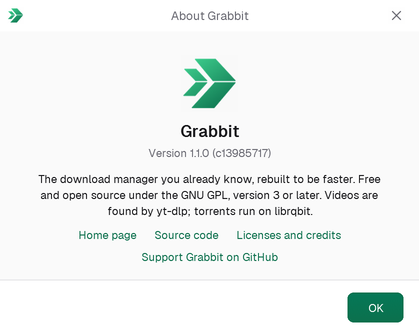
Help → About Grabbit shows the version you have.
Reporting a problem
Choose Help → Report a problem. It opens the bug report form on GitHub with your Grabbit version, your system and its version, how Grabbit was installed already filled in. Describe what happened, what you expected and the steps that make it happen. For a download, include the address if you can share it, and the reason shown under Status.
You can also open the form yourself; it asks for the same details.
Next steps
Free, open source, no ads, no trial.
Download Grabbit