
After a few months the list can hold hundreds of downloads. Here are four ways to get to the one you want.
Find by name
- Click the Find field in the title bar, or press Ctrl+F (or Downloads → Find).
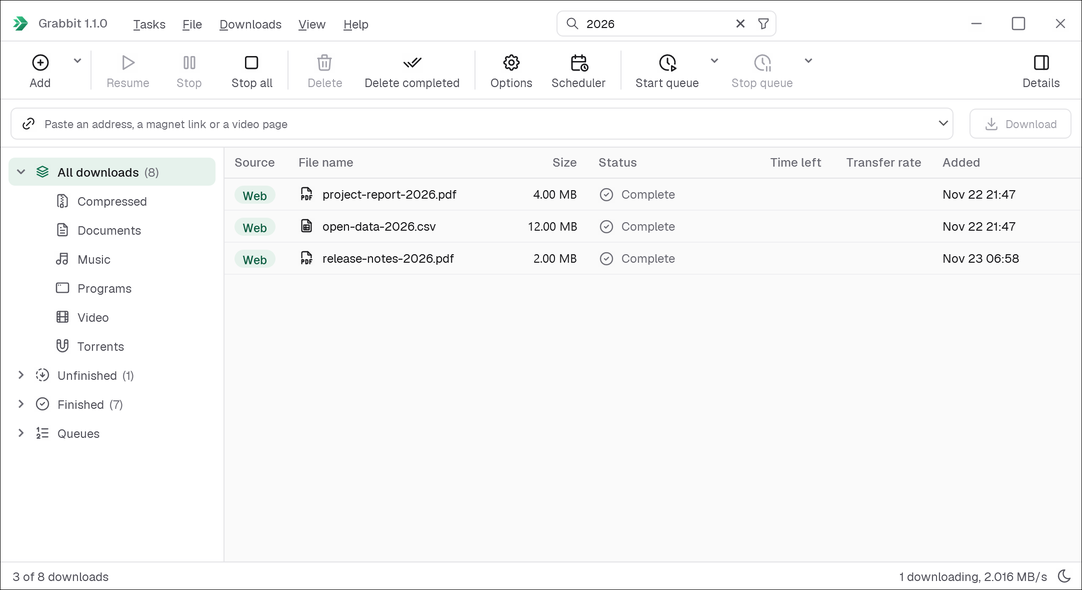
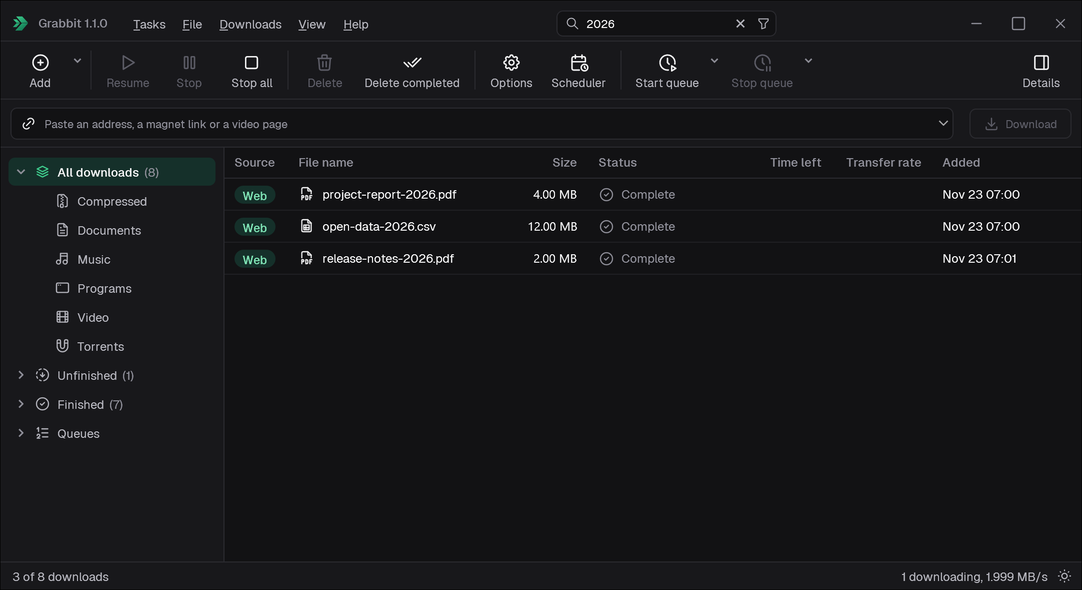
- Type part of the file's name. The list keeps only the downloads that match as you type, and the status bar says how many of them it shows (3 of 250 downloads).
- Press Enter or F3 to select the next match, Shift+Enter or Shift+F3 the one before. It wraps round.
- Press Esc, or click × in the field, to see every download again.
Find by description or address
Click the funnel at the end of the Find field. Under Match in, tick where to look:
- File name — on by default.
- Description — your notes.
- Site and address — the address, the site's name and the page the download came from. Tick this to find everything from one site.
Match case tells capitals apart. Match whole word only skips matches inside a longer word (setup finds my setup.exe, not setup2.exe).
The same menu shows only some downloads by Status (Downloading, Stopped, Waiting, Complete, Error) and Source (Web, Torrent): click a chip to hide or show those. They are the column filters below, so a filter set on a column title shows here too. A dot on the funnel means something narrows the list; Clear all shows everything again. Esc closes the menu.
Filter the list
Each column title has a faint funnel. Click it to keep only some rows:
- On Status, tick only Error to see the downloads that failed.
- On Source, tick only Torrent.
- On Q, tick In a queue or Not in a queue.
- On File name, Description and the other columns, type a word.
A filtered column's funnel turns blue. Right-click a column title and choose Clear all filters, or Clear all in the Find field's funnel menu, to see everything again.
Narrow it down with categories and sorting
- Click Unfinished or Finished in the categories, or a category such as Video, to see only those downloads.
- Click a column title to sort: Added for the newest, Size for the biggest, File name for A to Z. Click again to reverse.
- With the list selected, type the first letters of a name to jump straight to it.
Next steps
Free, open source, no ads, no trial.
Download Grabbit